Prefabs and Prefab Variants: Building Once, Placing Many Times
A prefab is a saved template that keeps every copy linked to its source, and the real skill lies in managing that link: knowing what to override, what to apply back, and when a variant or a nested prefab should carry the difference.
Every game is full of repetition. A forest is a few kinds of tree placed a thousand times; an army is a handful of soldier types multiplied by the hundred; a village is the same cottage turned this way and that along a road. Building each copy by hand would be absurd, but copying and pasting a finished object carries its own curse, because the moment the original changes, every pasted copy is left behind, faithful to a design nobody wants any longer.
Unity's answer is the prefab. A prefab is a GameObject, with all its components, children and settings, saved as an asset in the project rather than inside a scene. Copies placed into scenes remain linked to that asset, so that a change made to the source flows outward to every copy at once, while each copy is still permitted to differ in ways the developer explicitly allows. It is a template with a memory, and the memory runs in both directions.
The basic idea takes minutes to learn and years to use well. Prefabs raise questions of ownership: which values belong to the template and which to a particular copy, when a local change should be pushed back to the source, how one prefab can contain another, and how a family of similar objects can share a common ancestor. The modern prefab system, introduced with Unity 2018.3, answered most of these questions with nested prefabs and Prefab Variants, and it rewards a careful look at its rules.
From scene object to prefab asset
The simplest way to make a prefab is to build an object in a scene and drag it from the Hierarchy window into the Project window. Unity writes a file with the extension prefab, containing the object's whole hierarchy in serialized form, and the object in the scene becomes the first instance of that new prefab asset. In the Hierarchy, its name turns blue and a small cube icon appears beside it, a sign that it now answers to a source elsewhere.
To edit the source itself, one opens it in Prefab Mode, by double clicking the asset or using the arrow beside an instance in the Hierarchy. The scene recedes, and the prefab is shown on its own, or in the context of the scene with the surroundings greyed out. Changes made there are changes to the asset. When Prefab Mode is closed and the asset saved, every instance in every scene updates, except where an instance has deliberately kept a different value of its own.
What is worth putting into a prefab is a question of repetition and identity. Anything placed more than once, a fence segment, a barrel, an enemy, a projectile, is a natural candidate, and so is anything that must be created at runtime, since code can only spawn what exists as an asset or in the scene. Unique set pieces that appear once may still benefit, because a prefab can be edited in isolation and shared across scenes, and because version control merges a small prefab file more gracefully than a sprawling scene.
Instances and the overrides they keep
A prefab instance is not an independent copy. It stores a reference to its source asset and, alongside it, a list of the ways it differs: these are its overrides. Change the colour of one barrel's material reference, add a Light component to one lamp post, remove a child object from one cart, and each change is recorded as an override on that instance. Everything not overridden is still read from the asset, which is why an edit to the asset reaches the instance without disturbing its local differences.
The Inspector makes overrides visible. A modified property appears in bold with a coloured bar in the margin beside it, and added components or child objects carry a small plus badge. At the top of the Inspector, an Overrides dropdown lists every difference between the instance and its asset, and lets the developer compare each one side by side. This visibility matters, because overrides accumulate quietly over months, and a scene full of instances that each differ in small, forgotten ways is a scene that no longer obeys its templates.
Some overrides are expected and harmless. Unity treats the name of an instance's root, together with the position and rotation of its root Transform, as belonging to the instance, so they are not offered for applying back to the asset; nobody wants every barrel to move to wherever the last one was placed. Other properties, once overridden, stay disconnected from future changes to the asset. If an instance overrides a soldier's speed, a later change to the soldier prefab's speed will not reach that instance, which is precisely the point and occasionally the bug.
Applying and reverting
An override can end in one of two ways. Applying it writes the instance's value back into the prefab asset, making the local change the new default for every instance. Reverting it discards the local value, so the instance once again reads from the asset. Both are available from the Overrides dropdown, which offers Apply All and Revert All for the whole instance, and from the context menu of any individual overridden property, which allows the decision to be made one value at a time.
Applying is the more consequential of the two, because it reaches into every scene that uses the prefab. A developer who tweaks one tower until it looks right and then presses Apply All has changed every tower in the project, including ones in scenes they have not opened in weeks, and perhaps including towers whose own overrides depended on the old defaults. A brief review of the Overrides list before applying, checking that each listed change is truly meant for all instances, prevents a great deal of puzzled archaeology later.
Reverting is the instrument of hygiene. Instances that have drifted from their source for no remaining reason can be returned to it, so that future edits to the asset reach them again. Some teams make a habit of reviewing overrides on important prefabs before a milestone, reverting the accidental ones and applying the deliberate ones, so that the only differences left in scenes are differences someone meant. The system records intent faithfully, but it cannot tell an intention from an accident.
Nested prefabs
Before 2018.3, placing one prefab inside another broke the inner link: the child became part of the outer prefab and forgot its own source. The modern system allows nesting, so that a prefab may contain instances of other prefabs that remain linked to their own assets. A house prefab can contain a door prefab and several window prefabs; editing the window asset updates every window, in every house, in every scene, while the house prefab itself is untouched.
Nesting brings a new subtlety to overrides, because a change can now be recorded at more than one level. A window inside the house might be tinted differently from the window asset, and that difference is stored as an override on the house prefab, not on the window prefab. When applying such a change, Unity asks where it should go: into the outer house prefab, where it affects only windows in houses, or all the way down into the window asset, where it affects every window everywhere.
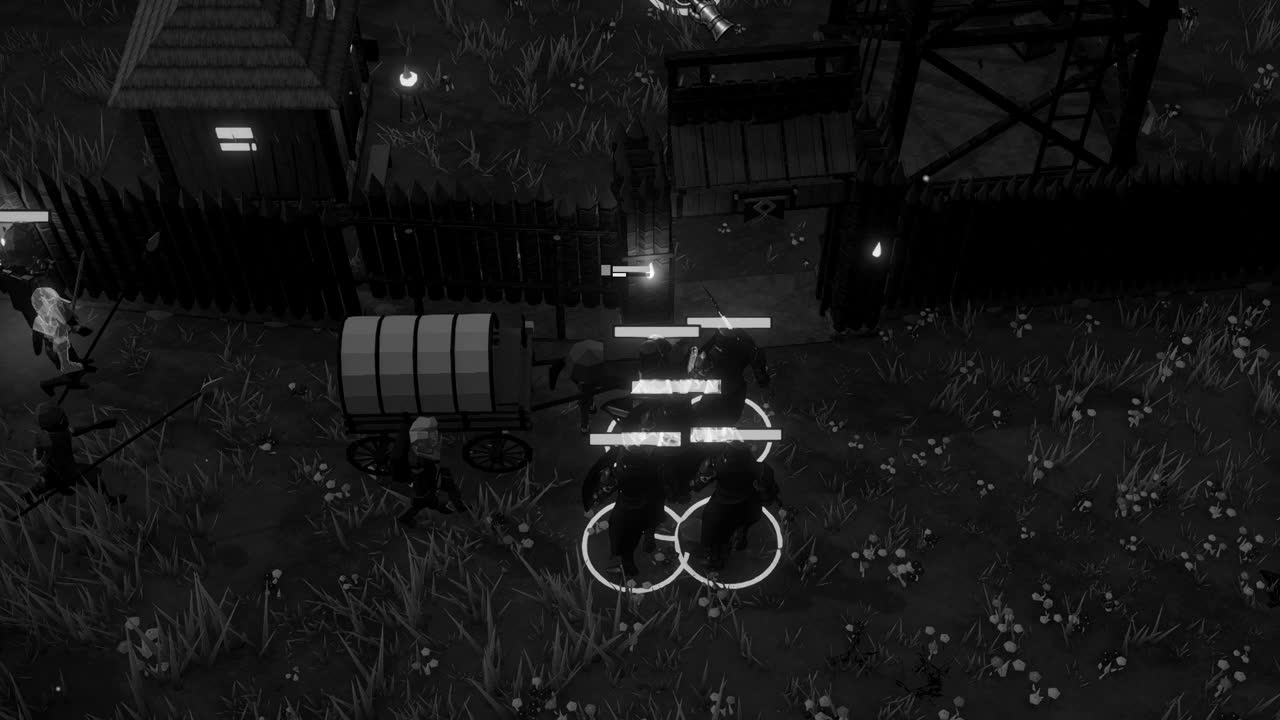
Nested prefabs encourage building in layers, from small reusable parts toward larger assemblies. A palisade section and a gate might each be prefabs, assembled into a fortified wall prefab, which might in turn be placed around a settlement of the kind found in Crown & Ashes. The discipline is to keep each layer responsible only for what it adds, so that a change to the smallest part ripples upward predictably instead of colliding with overrides scattered at every level.
Sometimes the link must be cut deliberately. The Unpack Prefab command turns an instance back into ordinary GameObjects, removing its connection to the asset while keeping any nested prefab instances inside it linked; Unpack Completely removes every prefab link in the hierarchy. Unpacking is irreversible in the sense that the object will no longer receive updates, and it is best reserved for genuine one offs, a ruined variant of a building placed once in a story scene, rather than as an escape from a confusing override.
Prefab Variants
Variants solve a problem that nesting does not: families of objects that are almost the same. A Prefab Variant is a prefab that takes another prefab as its base and stores only the differences. Create a variant of a soldier prefab, change its mesh, its armour value and its weapon, and the variant remembers just those three overrides; everything else it inherits from the base. Variants can be created from the Create menu in the Project window, or by dragging an existing instance into the Project window and choosing to make a variant.
The inheritance runs as one would hope. A change to the base soldier, a new footstep sound or a fix to its collider, flows into every variant that has not overridden that property. A change to the variant affects only the variant and anything derived from it, for variants can be based on other variants, forming chains such as a soldier, then an archer, then a veteran archer. The chain should stay short, since each extra link makes it harder to answer the simple question of where a given value comes from.
Variants and nested prefabs are often confused, and the distinction is one of relationship. Nesting expresses that one thing contains another: a house has a door. A variant expresses that one thing is a kind of another: an archer is a kind of soldier. Most projects use both together, and choosing correctly keeps the structure honest. When a designer finds themselves overriding the same five properties on many instances of a prefab, that repeated pattern is usually a variant waiting to be made.
Instantiate and prefabs at runtime
Prefabs are not only an editor convenience; they are how code creates things during play. Object.Instantiate takes a prefab reference, typically assigned to a serialized field in the Inspector, and returns a new copy in the scene, with optional arguments for position, rotation and parent. The copy receives Awake and OnEnable before Instantiate returns, so any setup the caller performs on it afterwards happens after those methods have already run, a detail that shapes how spawn code should be written.
An object created with Instantiate during play carries no link to its prefab asset. It is an ordinary set of GameObjects, named after its source with the suffix Clone in parentheses, and changes to the asset will not affect it. Editor scripts that need to place linked instances, for example a tool that scatters trees across a terrain while keeping each tree tied to its prefab, should use PrefabUtility.InstantiatePrefab instead, which creates a genuine prefab instance in the edited scene.
Instantiating is not cheap, and destroying is not either, because both allocate and release memory that the garbage collector must later reclaim. Games that create and destroy the same kinds of objects constantly, arrows, sparks, hit numbers, usually turn to object pooling: a supply of prefab instances is created in advance, deactivated, and handed out and returned as needed. Unity has shipped a general purpose ObjectPool class in the UnityEngine.Pool namespace since the 2021 releases, and pooled objects still begin their lives as prefabs, built once and placed as many times as the game demands.